 100382bf71
This change allows you to use generic-typed components without
explicitly specify type arguments.

**Before:**
```
<Grid Items="@MyItems" TItem="Person">
...
</Grid>
```

**After:**
```
<Grid Items="@MyItems">
...
</Grid>
```

Where possible, the type of the component will be inferred based on the
values passed to component parameters. This won't work like magic, you
have to specify parameters that provide type arguments for all of the
component's type parameters.

This is a best effort system, and it's largely based on the limitations
and behaviours of generic type inference in C#. We think it will work
well with most Blazor features and for most reasonable components. You
should not forget it's easy to specify type arguments, because you may
still have to in some cases.

In particular you may notice issues if you are trying to use a generic
typed component where all of the parameters are delegates or templates.
Type inference for delegates/lambdas in C# is based on the context. Any
time you combine generics and delegates it's easy to get into a scenario
where the compiler won't infer the correct type, or will give up.

----
The type inference feature works by generating a 'thunk' method in
*caller* that can act as a site for type inference (C# does not support
inference on constructors).

For our grid example above, the non-inferenced code will look something
like:
```
builder.OpenComponent<Grid<Person>>(0);
builder.AddAttribute(1, "Items", MyItems);
builder.CloseComponent();
```

Note that we can only write the type `Grid<Person>` because you wrote
`Person` in your code. What you type in the `TItem` attribute value gets
inserted into the generated code such that it fills in the generic type
parameter.

On the other hand, if you want is to infer the type, we have to do some
compiler magic. That looks like:
```
__Blazor.(long generated name).TypeInference.CreateGrid_0();
...

// elsewhere in the file
internal static class TypeInference
{
    public static void CreateGrid_0<TItem>(RenderTreeBuilder builder,
    int seq, int __seq0, global::System.Collections.Generic.List<TItem>
    __arg0)
        {
	        builder.OpenComponent<Grid<TItem>>(seq);
		        builder.AddAttribute(__seq0, "Items", __arg0);
			        builder.CloseComponent();
				    }
				    }
				    ```

				    This allows us to rely on the C#
				    compiler for itype inference.
|
||
|---|---|---|
| .vsts | ||
| benchmarks | ||
| build | ||
| modules | ||
| samples | ||
| src | ||
| test | ||
| tooling | ||
| .appveyor.yml | ||
| .editorconfig | ||
| .gitattributes | ||
| .gitignore | ||
| .gitmodules | ||
| .travis.yml | ||
| Blazor.sln | ||
| CODE_OF_CONDUCT.md | ||
| CONTRIBUTING.md | ||
| Directory.Build.props | ||
| Directory.Build.targets | ||
| LICENSE.txt | ||
| README.md | ||
| THIRD-PARTY-NOTICES.txt | ||
| build.cmd | ||
| build.sh | ||
| global.json | ||
| korebuild-lock.txt | ||
| korebuild.json | ||
| run.cmd | ||
| run.ps1 | ||
| run.sh | ||
| version.props | ||
README.md
Blazor
An experimental .NET web framework using C#/Razor and HTML that runs in the browser via WebAssembly

Blazor is a .NET web framework that runs in any browser. You author Blazor apps using C#/Razor and HTML.
Blazor uses only the latest web standards. No plugins or transpilation needed. It runs in the browser on a real .NET runtime (Mono) implemented in WebAssembly that executes normal .NET assemblies. It works in older browsers too by falling back to an asm.js based .NET runtime.
Blazor will have all the features of a modern web framework, including:
- A component model for building composable UI
- Routing
- Layouts
- Forms and validation
- Dependency injection
- JavaScript interop
- Live reloading in the browser during development
- Server-side rendering
- Full .NET debugging both in browsers and in the IDE
- Rich IntelliSense and tooling
- Ability to run on older (non-WebAssembly) browsers via asm.js
- Publishing and app size trimming
Note: Blazor is an experimental project. It's not (yet) a committed product. This is to allow time to fully investigate the technical issues associated with running .NET in the browser and to ensure we can build something that developers love and can be productive with. During this experimental phase, we expect to engage deeply with early Blazor adopters like you to hear your feedback and suggestions.
To see Blazor in action, check out Steve Sanderson's demo at NDC Minnesota. You can also try out a simple live Blazor app.
Getting Started
To get started with Blazor and build your first Blazor web app check out our getting started guide.
Building the Repo
Prerequisites:
-
Node.js (>8.3)
-
Restore Git submodules by running the following command at the repo root:
git submodule update --init --recursive
The Blazor repository uses the same set of build tools as the other ASP.NET Core projects. The developer documentation for building is the authoritative guide. Please read this document and check your PATH setup if you have trouble building or using Visual Studio
To build at the command line, run build.cmd or build.sh from the solution directory.
If you get a build error similar to The project file "(some path)\blazor\modules\jsinterop\src\Mono.WebAssembly.Interop\Mono.WebAssembly.Interop.csproj" was not found., it's because you didn't yet restore the Git submodules. Please see Prerequisites above.
Run unit tests
Run build.cmd /t:Test or build.sh /t:Test
Run end-to-end tests
Prerequisites:
- Install selenium-standalone (requires Java 8 or 9)
- Open JDK9
npm install -g selenium-standaloneselenium-standalone install
- Chrome
Run selenium-standalone start
Run build.cmd /t:Test /p:BlazorAllTests=true or build.sh /t:Test /p:BlazorAllTests=true
Opening in Visual Studio
Prerequisites:
- Follow the steps here to set up a local copy of dotnet
- Visual Studio 2017 15.7 latest preview - download
When installing Visual Studio choose the following workloads:
- ASP.NET and Web Development
- Visual Studio extension development features
Before attempting to open the Blazor repo in Visual Studio, restore Git submodules by running the following command at the repo root:
git submodule update --init --recursive
If you have problems using Visual Studio with Blazor.sln please refer to the developer documentation.
Developing the Blazor VS Tooling
To do local development of the Blazor tooling experience in VS, select the Microsoft.VisualStudio.BlazorExtension
project and launch the debugger.
The Blazor Visual Studio tooling will build as part of the command line build when on Windows.
Using CI Builds of Blazor
To use a nightly or developer CI build of the Blazor package, ensure that you have the Blazor package feed configured, and update your package version numbers. You should use developer builds only with the expectation that things will break and change without any sort of announcement.
Update your projects to include the Blazor development feed (https://dotnet.myget.org/f/blazor-dev/api/v3/index.json). You can do this in a project file with MSBuild:
<RestoreAdditionalProjectSources>
    https://dotnet.myget.org/f/blazor-dev/api/v3/index.json;
</RestoreAdditionalProjectSources>
Or in a NuGet.config in the same directory as the solution file:
<?xml version="1.0" encoding="utf-8"?>
<configuration>
 <packageSources>
    <clear />
    <add key="blazor" value="https://dotnet.myget.org/f/blazor-dev/api/v3/index.json" />
    <add key="nuget" value="https://api.nuget.org/v3/index.json" />
 </packageSources>
</configuration>
You can browse https://dotnet.myget.org/gallery/blazor-dev to find the current versions of packages. We recommend picking a specific version of the packages and using it across your projects.
<ItemGroup>
    <PackageReference Include="Microsoft.AspNetCore.Blazor.Browser" Version="0.3.0-preview1-10220" />
    <PackageReference Include="Microsoft.AspNetCore.Blazor.Build" Version="0.3.0-preview1-10220" PrivateAssets="all" />
    <DotNetCliToolReference Include="Microsoft.AspNetCore.Blazor.Cli" Version="0.3.0-preview1-10220" />
</ItemGroup>
To install a developer CI build of the Blazor Language Service extension for Visual Studio, add https://dotnet.myget.org/F/blazor-dev/vsix/ as an additional extension gallery by going to Tools -> Options -> Environment -> Extensions and Updates:
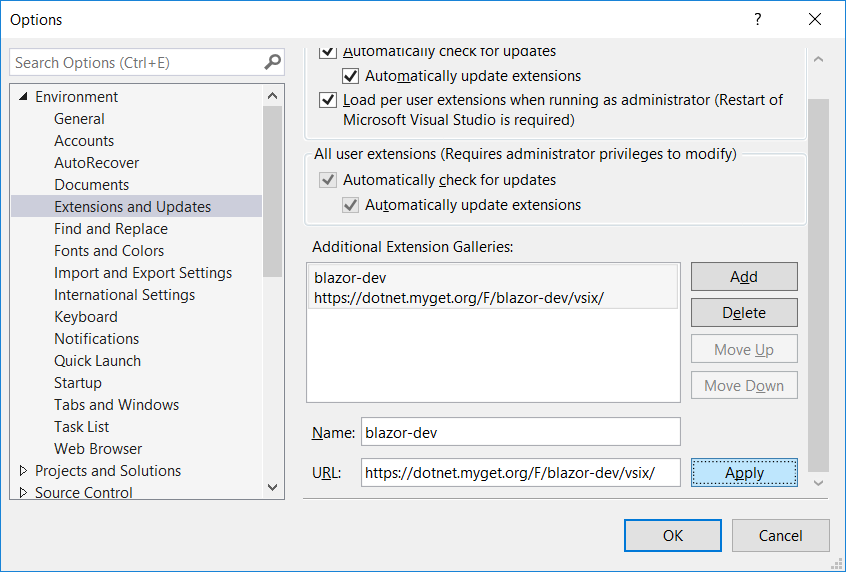
You should then be able to install or update the Blazor Language Service extension from the developer CI feed using the Extensions and Updates dialog.
Contributing
There are lots of ways that you can contribute to Blazor! Read our contributing guide to learn about our development process and how to propose bug fixes and improvements.